Posts

Showing posts with the label Chrome OS

The Best Chrome OS Screen Capture Features
Image
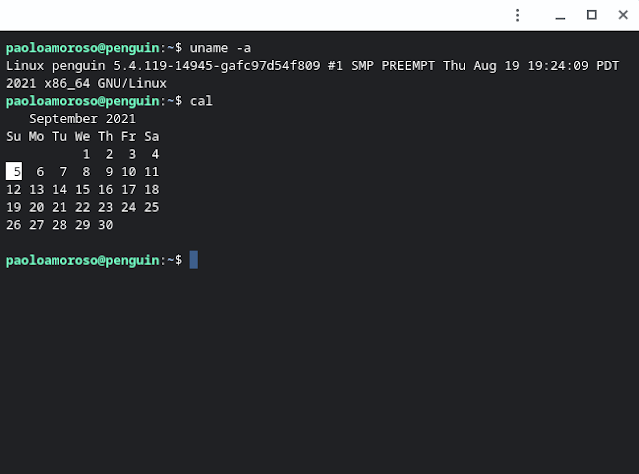
Although the Nimbus Chrome extension is my primary screenshot and screencasting tool, I’m re-discovering the native Chrome OS screen capture functionality . Two features of the latter improve my workflow, the ability to precisely frame the capture area and to save screen recordings in the WebM video format. The Crostini Linux Terminal on my ASUS Chromebox 3. I took this screenshot with the area framing controls of the Chrome OS screen capture tool. When I activate the tool by pressing Shift+Ctrl+ShowWindows and draw the selection rectangle to delimit an area of the screen, clicking and dragging a corner brings up a magnified inset of the area around the mouse pointer that allows the precise adjustment of the selection rectangle . To make the inset show up, I have to release the mouse button after drawing the rectangle, then click a corner. My ASUS Chromebox 3 has a mouse, which allows for fine tuning the rectangle’s size and position. The trackpad or touch screen of my Chromebook req...

Why I Use a Chromebox

Image
Chromebooks are mainstream but many people don’t grok Chromeboxes. A Redditor wondered what’s the point of Chromeboxes and what to use them for, especially high-end units. People seem to assume Chromeboxes are good only as kiosks or for who knows what uncommon use-case. The main unit of my ASUS Chromebox 3. I use a Chromebox because I nearly never need to move my primary desktop device . And I want the most high-end unit I can get my hands on to do the same stuff cheap Chromebooks can do, but faster. Let me elaborate. First off, in 2015 I switched to using Chrome OS exclusively on the desktop . I stopped using traditional desktop operating systems such as Linux or Windows.  Therefore, for me the choice is among the form factors of Chrome OS desktop devices: Chromebook (laptop), Chromebox (fixed desktop system), or Chromebase (think iMac for Chrome OS). I picked up a Chromebox as my daily driver because I work with it at the same desk 99.999% of the time . Since I nearly never need...

Simulating an Eclipse with Celestia for Android

Image
What would a lunar eclipse look like on the Moon? Closeup of the Earth hiding the Sun in a simulation of the May 26, 2021 lunar eclipse seen from the Moon. With Celestia for Android I simulated the May 26, 2021 lunar eclipse seen from the Moon . I screen-recorded a video on my ASUS Chromebox 3 while the Celestia app simulated the eclipse as seen from the lunar surface in an area near the North pole. Standing on the Moon the phenomenon would appear as a solar eclipse , with the Earth moving in front of the Sun and hiding it. In the video time runs 1000 X faster, from 04:00 UTC on May 26 to 19:00 UTC. The frame has a field of view of about 21° vertically. Notice the surface darkening up to the horizon while the Earth covers the Sun and casts a shadow on the Moon. How to simulate the eclipse Celestia is the best universe simulation software. To create the simulation, I used the Celestia app for Android on my ASUS Chromebox 3 not only because it runs well on Chrome OS but also because a ...

Python with Replit: A Journey in the Cloud

Image
Can I use only Replit for all my Python development? It’s what I set out to find. Follow along my journey to coding in Python on Chrome OS only with the tools and resources of Replit . I want to learn to live off the land in Replit; to develop, test, check into version control, run, document, deploy, and host Python code with Replit. I’ll share my experiences in Python with Replit , a blog post series documenting my ongoing efforts. A Python REPL in Replit on my ASUS Chromebox 3. This is not a philosophical quest for cloud purity or a “use only brand X for 30 days” blog challenge. It’s rather the realization of how much my tools shape the way I work. When in Chrome, do as the chromies do. I want Replit to be my main Python environment, figure out how to work around its limitations, and push the boundaries of what it can do. I’m a hobby programmer and a Python beginner, not a professional developer. These constraints define the journey and frame my setup and tooling decisions. Why use R...

Screen Sharing Android Apps in Video Calls on Chromebooks

Image
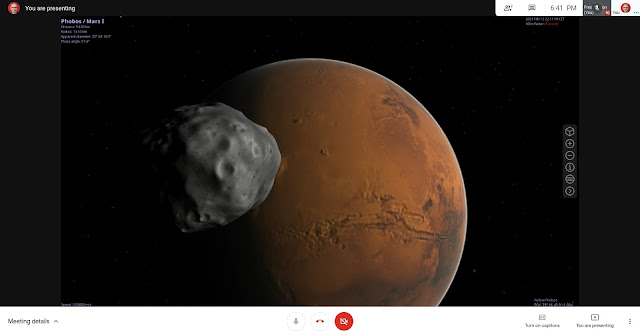
On your Chromebook you can present the screen of an Android app in a Google Meet or Zoom video call. The trick is to select the app’s window when sharing. In Google Meet, pin the shared window to the screen to see what the app looks like to the guests in the call. Presenting the Celestia Android app in a Google Meet video call on my ASUS Chromebox 3. The same goes for Linux apps. But, if an app opens over one window, you’ll be able to share only one at a time. Sharing the whole screen with an app open in the foreground works too and has the advantage of showing all the app windows. It’s less practical, though. Given the limited resolution and quality of video calls, it’s better to maximize the Android app’s window so the guests can view a larger image with more detail. The only downside is most Android apps aren’t optimized for large screens and may have large blank areas and widgets spread wide apart. Keeping the default, non-maximized app window fixes this and can be useful. For ex...

How to View the Rings From Saturn

Image
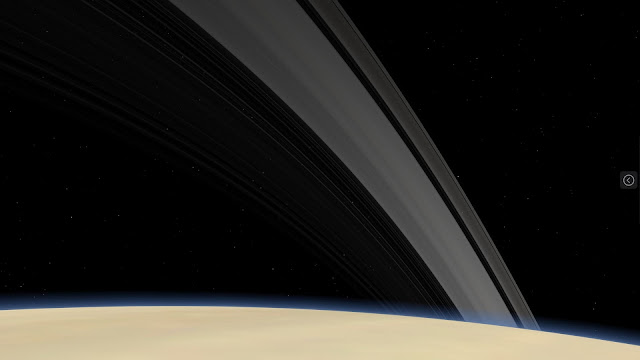
What would the rings of Saturn look like from the globe of the planet? Imagine you flew a spacecraft to the visible surface at the top of the atmosphere. The rings may look like this. The rings seen from the surface of Saturn at middle northern latitudes. View in Celestia for Android on my ASUS Chromebox. On Android, you have a spacecraft: the Celestia app . I’ll explain how to view the rings of Saturn with Celestia for Android. But the instructions work also with Chromebooks, Android devices, and likely other operating systems. What you need Celestia is the best universe simulation software. It’s a popular open-source project originally developed for desktop operating systems. Now Celestia is available also on Android and works well on Chrome OS. It’s actually one of the few Android apps optimized for Chrome OS. A unique feature of Celestia is the ability to “land” on the surface of a planet or celestial body , i.e. change the point of view as if you looked at the sky standing on or ...

Mockup Generators for Google Devices

Image
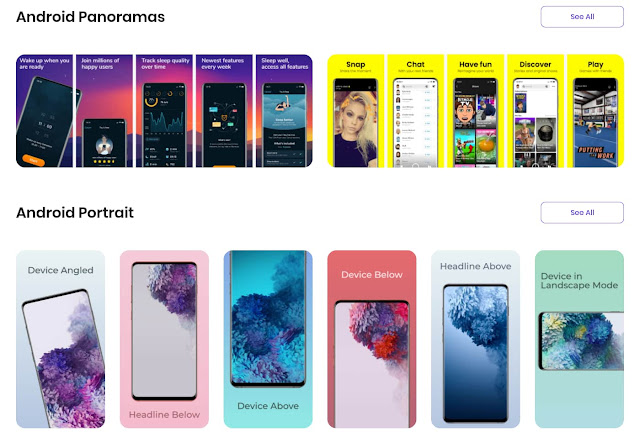
 Mockup generators are tools that combine screenshots with renderings of the frames and bezels of the desktop or mobile devices they are taken on. The generators can also overlay the screenshots to photos of actual devices. The Previewed mockup generator with some Android device frames. The combined images are used as illustrations or for promoting apps, ebooks, websites, or other digital products. There are several mockup generators for mobile and desktop devices such as smartphones, tablets, and laptops. But they usually focus on Apple hardware. The few frames in the Google ecosystems like Android phones or Chromebooks, when available, are often out of date. Google's own Android device art generator is missing the latest generations of flagships. Chrome can take screenshots with device frames but, again, there are no recent Android devices. Yeah, the cobbler's children have no shoes. List of mockup generators for Google devices I use mockup generators for sharing Android and...

Running Linux Astronomy Apps on Chrome OS

Image
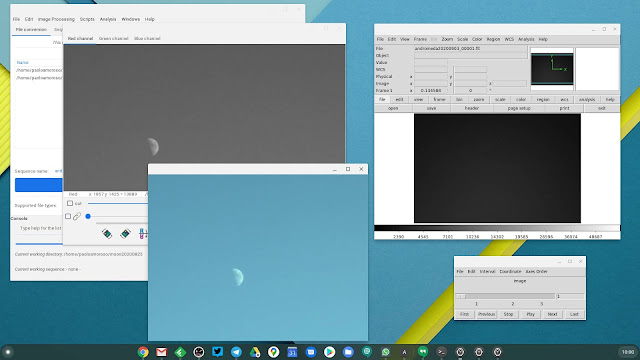
I got a Pixel 4 XL for its unique astrophotography features, along with a tripod for long-exposure photography with the phone. This is not enough, though. The workflow for producing images of the sky is best achieved with specialized astronomical image viewing and processing software. There are two good such Linux apps that work fine on my Chromebox in Crostini, Siril and SAOImage DS9 . I can install the .deb files from the Chrome OS Files app or the Terminal. Siril (left) and DS9 (right) for Linux running in Crostini on my Chromebox. Siril is an advanced image processing app . Although it loads all the major general-purpose image and video file formats, it internally works with FITS, the leading format for astronomical images and data. Siril supports calibration, stacking, background and noise removal, scripting, and many more features. With the Pixel 4 XL I take photos of the sky in RAW and export them as DNG files, the format the Google camera app that ships with Pixel devices s...

Chromehooked: 5 Years Since My First Chromebook

Image
Five years ago these days I bought my first Chromebook, an Acer C720. It was an impulse buy I planned for months. My first Chromebook, an Acer C720. Chrome OS had always intrigued me. Back then, I felt the need for a secondary computer besides my primary desktop PC running Ubuntu Linux. I was living in Chrome and the Google ecosystem anyway most of the time, so getting a Chromebook was an easy decision. Chrome OS immediately felt natural. That humble device, the Acer C720, had enough performance for my typical needs. There’s another reason I wanted to give Chrome OS a go: I had had enough with maintaining Linux . When I got the Chromebook, I had been using Linux only for the previous decade and a half. After trying several distributions, I settled on Ubuntu. I dreaded the Russian roulette of system updates. All went well most of the time but, once every few weeks, a version mismatch between the kernel and some device drivers or kernel modules would dump me into a text...

Pixlr E: A Photo Editor in the Cloud

Image
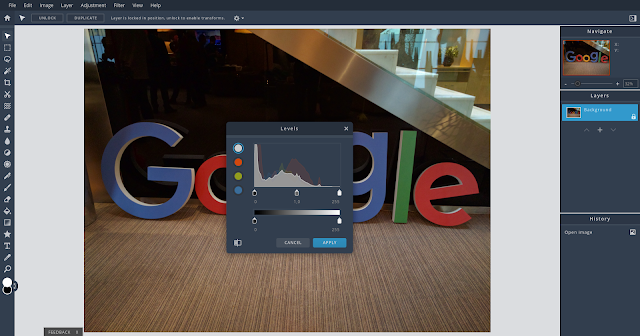
Pixlr E is a photo editing web app. Along with the basic image editing features, it provides advanced tools for retouching, applying effects, drawing, filtering, and adjusting photos. Pixlr E also supports layers and a versatile command history, which lets you undo back to a specific state or change. Pixlr E with the light theme on my ASUS Chromebox. The workspace is configurable and you can minimize or remove the right sidebar to get a larger editing area. There are keyboard shortcuts, too. The app feels intuitive and easy to master. Although I use Pixlr E mostly on Chrome OS, it works well and is fast on all platforms and devices . Pixlr E is surprisingly fast and usable also on Android, even on my low-end Lenovo Tab E7 tablet . However, on the tablet, tapping the confirmation button in dialogs doesn’t seem to do anything. There’s another quirk on Android. The editing dialogs can’t apparently be moved, so they cover most of the image and you can’t see the effects of th...

Mercury Reader Removes the Clutter from Web Pages

Image
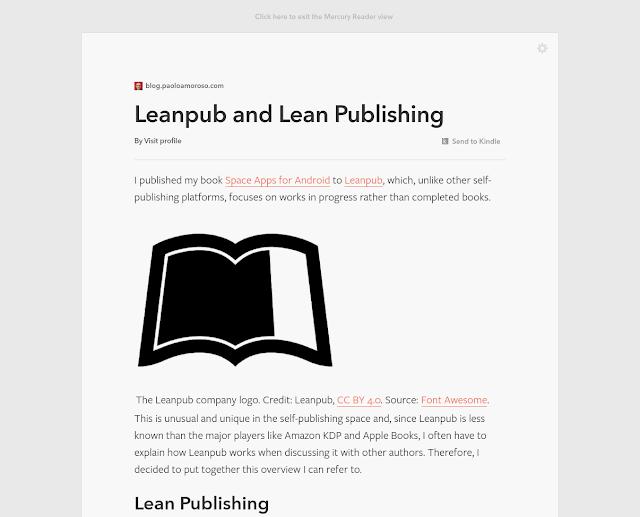
The Mercury Reader Chrome extension is a reader mode tool for cleaning off the clutter from web pages. It reformats the pages by removing distracting elements and leaving only text and images for a cleaner experience. Mercury Reader is one of my must-have extensions and I use it daily. A post of my blog reformatted with Mercury Reader. It’s installed on all my Chrome OS devices and it’s available whenever I need it. I can fire it up when visiting sites with tiny or illegible fonts, uncomfortable color combinations, pop-ups, excessively wide text margins, pages encrusted with ads, or with designs that interfere with reading. I don’t use a permanent ad-blocker , so Mercury Reader doubles as an on-demand ad blocker. The extension removes distracting features such as navigation elements, sidebars, headers, and ads . Besides the images, it leaves only the text and sets it with clean fonts and attributes that make reading more pleasing. Although it does a good job in most cases...

How to Copy to the Clipboard and Use Images on Chrome OS

Image
When saving an image on Chrome OS devices such as Chromebooks there’s a quick way of copying it to the clipboard for direct use. In the notification that appears when saving the image, click the button for copying to the clipboard. This way you can immediately use the image without reloading it from the local storage . For example, pasting the image into Gmail’s message composition window, in the post editor of an online discussion board, in a conversation of a messaging app, or in the content editor of nearly any platform that supports attaching images. The Chrome OS notification for saving an image with the option for copying it to the clipboard. I took the screenshot on my Chromebox, which I use in Italian. Chrome OS issues these notifications every time an app or extension saves an image. For example when saving images from the browser or a photo editor, or capturing and annotating screenshots . If you copy an image to the clipboard, the image file is still saved to the...

Capturing and Annotating Images with Nimbus Screenshot

Image
The Nimbus Screenshot & Screen Video Recorder Chrome extension is my favorite screenshot capture and editing tool. A screenshot annotated with Nimbus Screenshot on my Chromebox. I love the extension for its variety of capture options and annotation tools . I use Nimbus Screenshot on Chrome OS and it integrates well with the Google cloud as it lets me save to Google Drive. I use it for all the Chromebox and Chromebook screenshots I post to my blog and elsewhere. I live in the browser and the Google cloud, so It’s a good fit for my workflow. Although the extension can also do screen recording, I don’t take advantage of these features. Nimbus Screenshot is so handy I often fire it up for quickly annotating arbitrary images other than screenshots. I can add arrows, text, and other editable vector shapes such as ellipses and rectangles. In a pinch it doubles as a basic drawing app , often faster than opening a dedicated app. To annotate an image, select the Blank Screen ...

Pixlr X: An Image Editor in the Cloud

Image
Now that Android and Linux apps run on Chrome OS you can use pretty much any bitmap image editor, including the venerable GIMP. But, in the early days, the Pixlr cloud editor was the default recommendation — and the only practical choice. The cropping tool and options of Pixlr X running on my Chromebox. The original Pixlr and its related apps, such as the Pixlr Express lightweight editor, will be discontinued along with Flash on which they’re based. But the new Pixlr owner, the 123RF media company, rebuilt the toolset and developed Pixlr X as the heir of the Pixlr family of editors . Pixlr X has more robust foundations grounded in contemporary web technologies. I use Pixlr X on my Chrome OS devices and I like it for three reasons. The first is the app is fast and doesn’t get in the way of the work I want to do. Next, Pixlr X has a clean and modern design. The site is ad-supported but the few ads it serves blend with the site tastefully. Unlike the original Pixlr, Pixlr ...

Missing or Misplaced Keyboard Shortcuts on Your Non-English Chromebook? Here’s What to Do

Image
Are any keyboard shortcuts missing from your Chromebook with a non-English keyboard, or aren’t where the documentation says? It’s not just you. So star these issues in the Chromium tracker to let Google know they are widespread and require action: Docking windows using "alt + [ or ]" does not work on German keyboards as there is no "[ ]" key Virtual desks shortcuts missing from the Italian keyboard layout If you have a Chromebook with a keyboard layout of a language other than English, you likely realized a lot of shortcuts work only with different keys than the ones the Chrome OS help center or the Settings > Keyboard > Show keyboard shortcuts tool list. And some shortcuts are missing altogether. The keyboard shortcuts for virtual desktops listed in the Chrome OS keyboard mapping tool on my ASUS Chromebox 3. On Italian keyboards the shortcuts aren't where they're supposed to be and some are missing. There's a common cause. It’s an is...

In Praise of Cheap Keyboards

Image
I’m typing this with a keyboard that is cheap and looks cheap, and I’m loving it. It all started with my first Chromebook, an Acer C720 I got to learn about and explore Chrome OS. I loved it so much I switched to using Chrome OS as my only desktop operating system. Back then my daily driver was an i3 ASUS Chromebox 2 hooked to the Logitech K120 full travel keyboard I had kept around from my last PC. Having a main desktop machine, I put aside the Chromebook for a while. But later something motivated me to play with the Chromebook more: its keyboard . The screen of the Acer C720 has notoriously poor viewing angles. But I realized I could view it more comfortably by setting the Chromebook on a slightly taller desk, which made the angle optimal. This led me to use the device more and appreciate its chiclet keyboard with its good feedback . The Atlantis Chocolate 1300 keyboard I had with my ASUS Chromebox 2. To have a similar experience on the Chromebox I bought the only low p...

Google Finally Pitches Chromebooks to Consumers

Google has updated the Chromebooks landing page and is doing a Chrome OS marketing campaign . These promotional activities focus on consumers and switching to a Chromebook from a traditional desktop operating system. Hallelujah! So far Google targeted Chromebooks to the educational and corporate worlds, where it was easier to get a head start, and more recently to creators. But it has always been in the consumer space where Chromebooks can provide significant benefits to the majority of ordinary desktop users at home. They spend most of the time in a browser anyway and Chrome OS offers additional advantages such as nearly no maintenance, simplicity, improved security, unobtrusive system updates, affordability, and more. Now, if only Google could make it easier for consumers to buy Chromebooks outside of the US...

How to Work Offline With a Chromebook

My daily driver on the desktop is a Chromebox. Although I have also a Chromebook, my mobility needs are pretty limited and I don’t move the device much, not even across rooms. Therefore, since I have an excellent Internet connection and good Wi-Fi at home, I virtually never use Chrome OS offline. But I found JR Raphael’s guide to using a Chromebook offline useful and I encourage you to read it, especially because working offline with Chrome OS devices is a little known, often misunderstood feature. The key insight is working offline with a Chromebook requires some preliminary steps: configuring Google’s web apps for offline use bookmarking the web apps you need downloading the Google Drive files you plan to work on The guide provides all the details and a few more tips, for example for finding Android or Linux replacements for web apps that, like Google Calendar, don’t provide offline support.

The Chrome OS Shutdown Dialog

Image
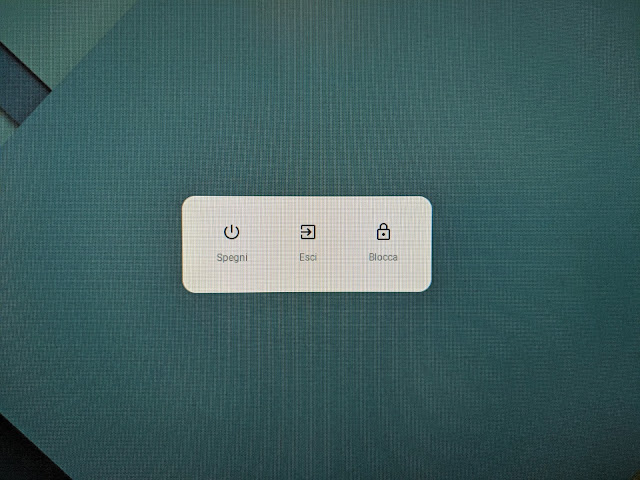
Chrome OS is pretty robust and rarely crashes. I always use the shutdown option in the status area to turn off my devices. So I missed the relatively new, Android-like shutdown dialog you get when long-pressing the power button of a Chromebook or another Chrome OS device, for example along with pressing the reload button ( F3 on an external keyboard) to force a shutdown. Here’s what the dialog looks like on the screen of my ASUS Chromebox 3. Although the system language is set to Italian you’ll easily recognize the icons. The Android-like shutdown dialog of my ASUS Chromebox 3. There are options for turning off the system ( Spegni ), signing out of the account ( Esci ), and locking the session ( Blocca ). The dialog is another Android feature brought to Chrome OS.

Android Usage on Chrome OS Grows But the Experience is Still Suboptimal

According to Google , in Q4 2018 21% of the notebooks sold in the US were Chromebooks and Android app usage on Chrome OS increased 4X over the past 12 months. Google is encouraging developers to target or adapt their apps to Chrome OS , for example by adding large screen and keyboard support to Android apps so they can run well on Chromebooks. But few or none of Google’s own apps do, starting from the Play Store. There are a few notable and encouraging  exceptions, such as the Roblox game that was optimized to run well on Chrome OS and take advantage of the additional exposure it can get on the platform. Google isn’t leading by example and doesn’t provide enough incentives to developers.